How to book a Knowtifly deal and change the dates
Knowtifly finds cheap flights from your home airport and sends you a deal with a date range. That Google Flights link is a starting point. You can often pick different dates at the same price.
Step 1 — Open the deal from Knowtifly
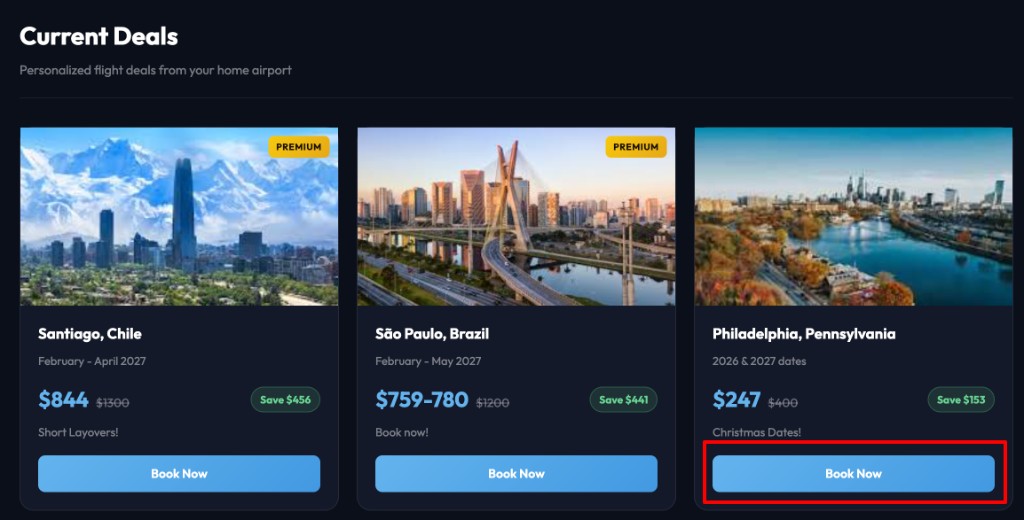
- Dashboard: find the deal and click Book Now.
- Email: open the deal alert and click View deal or Book this deal.
You’ll see the destination, date range, and price on the card before you click.
Google Flights opens with your home airport, destination, and those dates already filled in. The deal price shows on the matching flight.
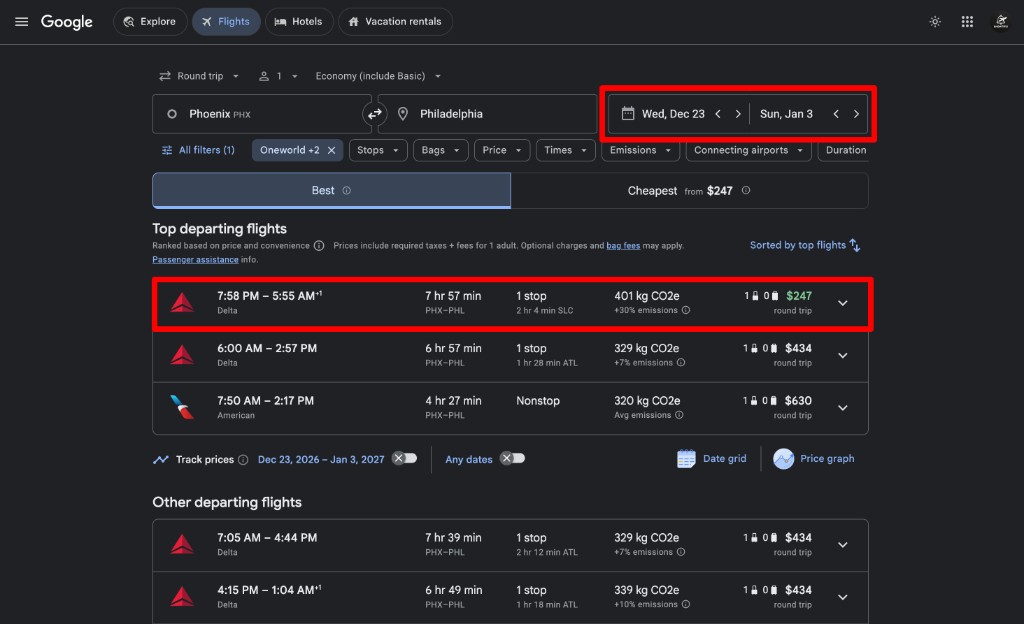
Tip: leave the departure airport as your home city.
Step 2 — Change the dates (or how long you’re gone)
- Note the deal price.
- Click the dates at the top of Google Flights.
- Use the calendar. Prices under each day help you shop. Green usually means a better fare.
- Use the arrows to change months. Use Reset if you want to start over.
- Use the day trips control at the bottom to try a shorter or longer stay.
- Pick a new outbound and return. Look for the same price.
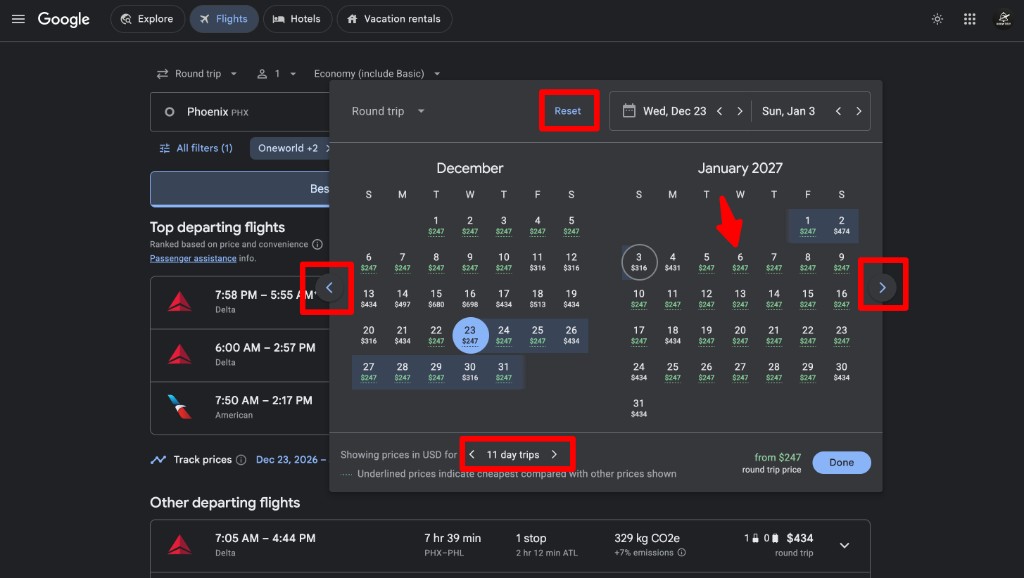
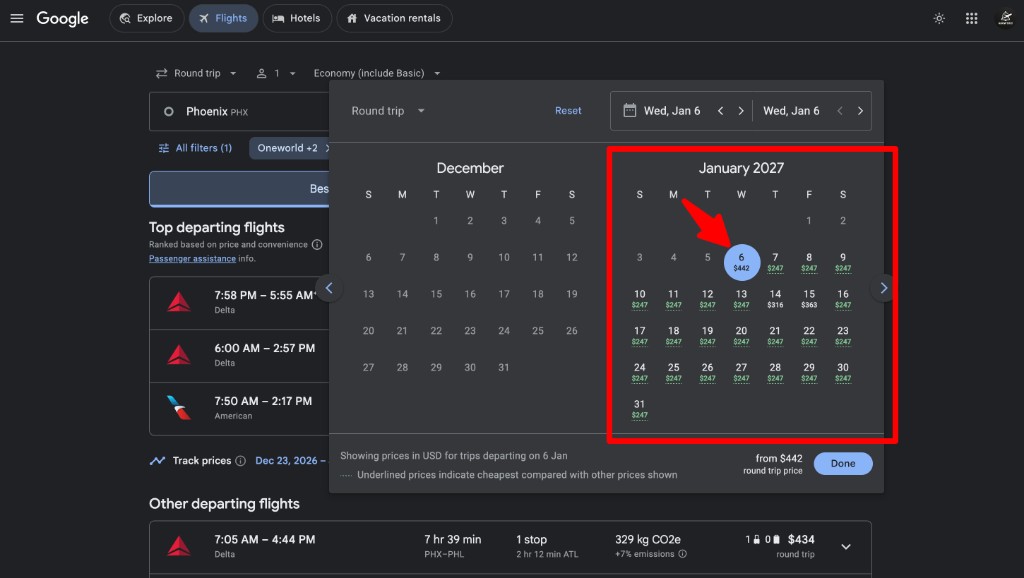
When you’re happy, click Done. The search updates with your new dates (ideally at the same deal price).
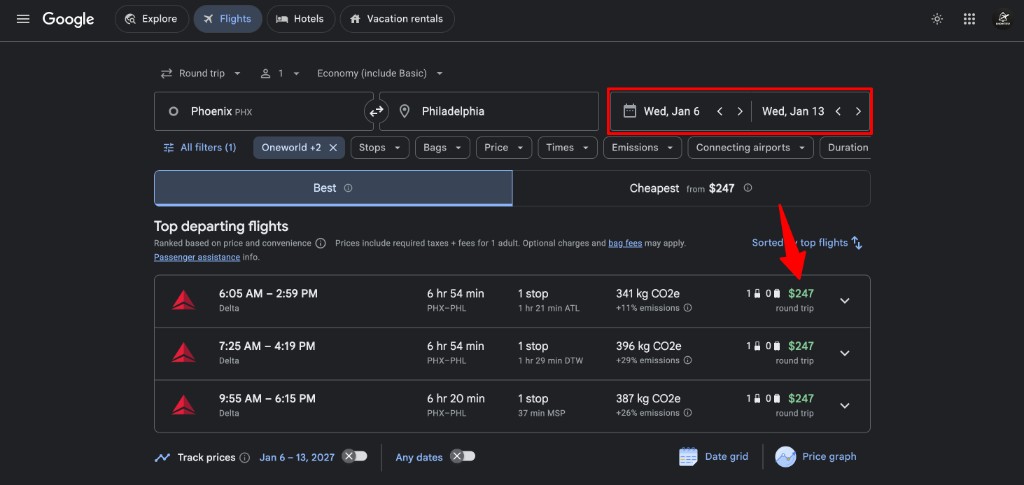
Passengers: change this only if you’re booking for more than one person.
Step 3 — Pick your flights
Choose a departing flight that still shows the deal price. Then choose a returning flight — you can still keep the same total price.
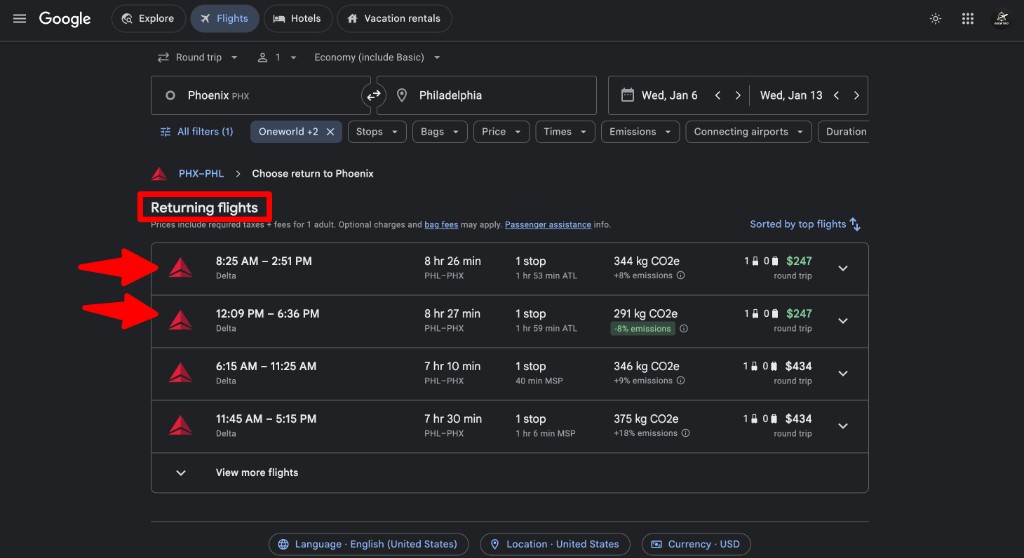
Step 4 — Choose how to book and finish
Review your trip, then pick a booking option. Sometimes you’ll see one airline; sometimes several partners.
We always suggest booking with the airline. If you book with a third party, do your research first.
Click Continue. You’ll go to that website to pay and get your confirmation.
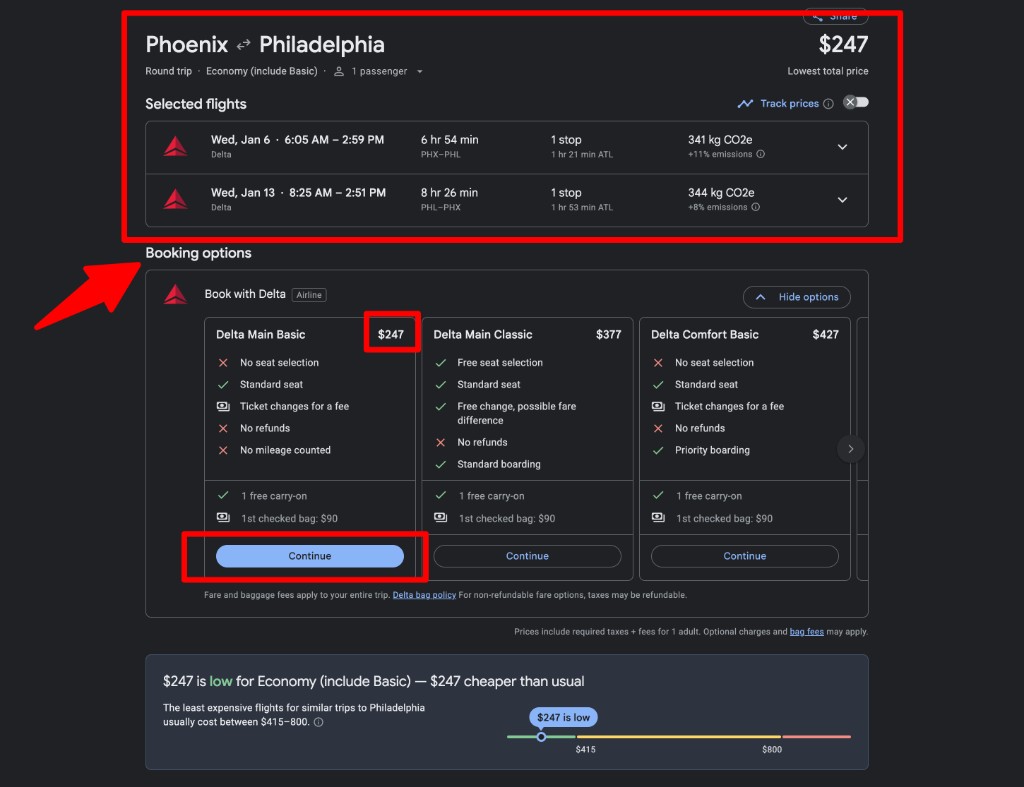
Quick check before you pay: right home airport, right dates, price still looks good.
Prices change quickly and can expire. If you don’t see the price we shared, the fare may already be gone.
Questions or need help? Email us at team@knowtifly.com